Troubleshooting
Common issues and how to fix them. Most problems have a simple solution.
The engraving looks overcooked or burnt
Your power settings are too high or the engraver is moving too slowly. We recommend increasing the speed first — this saves you time too. If the image still doesn't have enough detail, reduce the power setting. You can adjust both in Settings under your selected material.
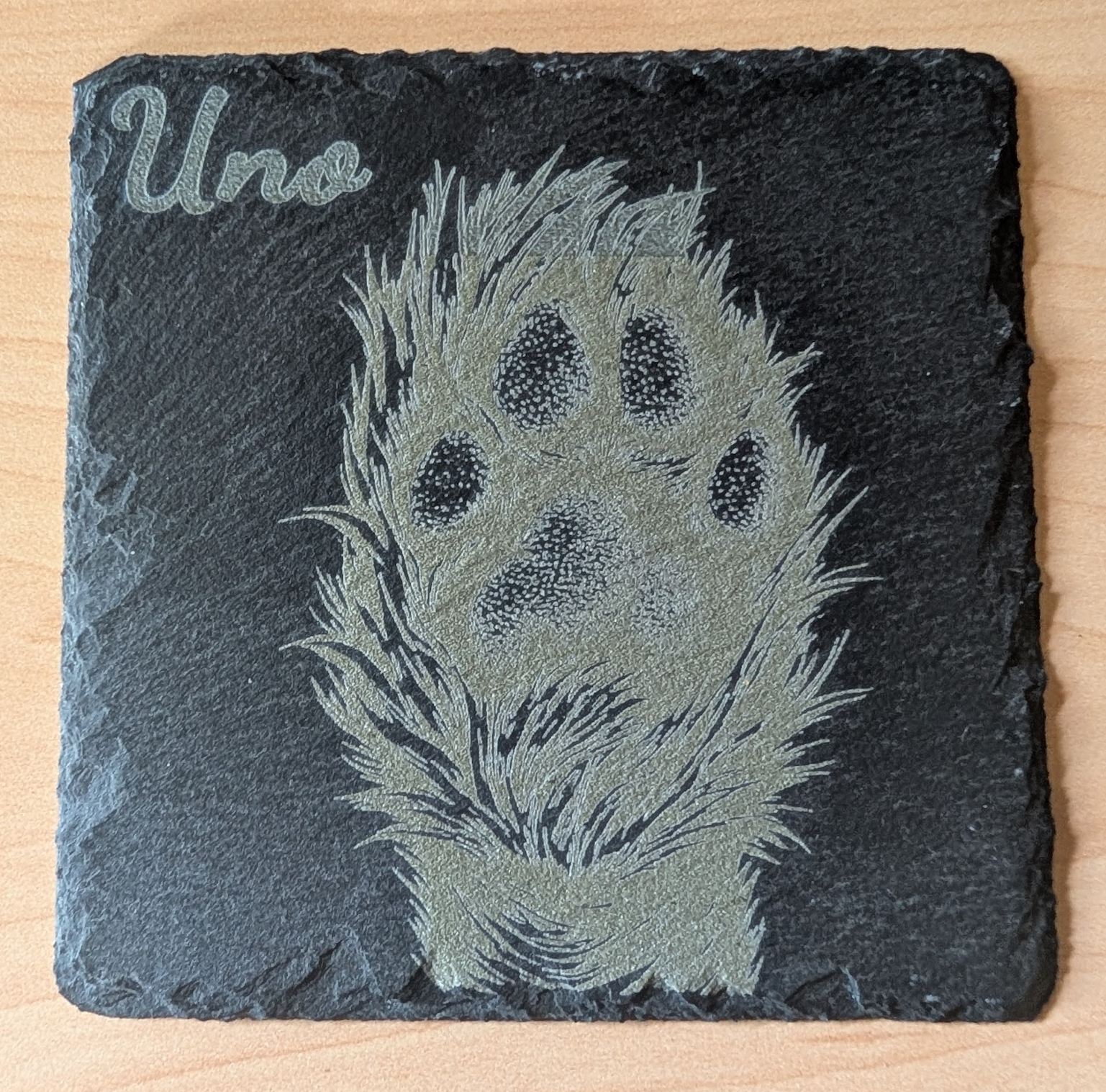
Also check that your laser focus distance is set correctly (see below).
The engraving is too faint or missing detail
Increase the power setting first, then slow down the print speed if needed. You can adjust these in Settings under your selected material.
Also check that your laser focus distance is set correctly (see below).
Laser focus distance
Both overcooked and too-faint engravings can be caused by incorrect laser focus distance. The laser head needs to be set at the correct height above your material. This image from Atomstack shows what a properly focused laser looks like:
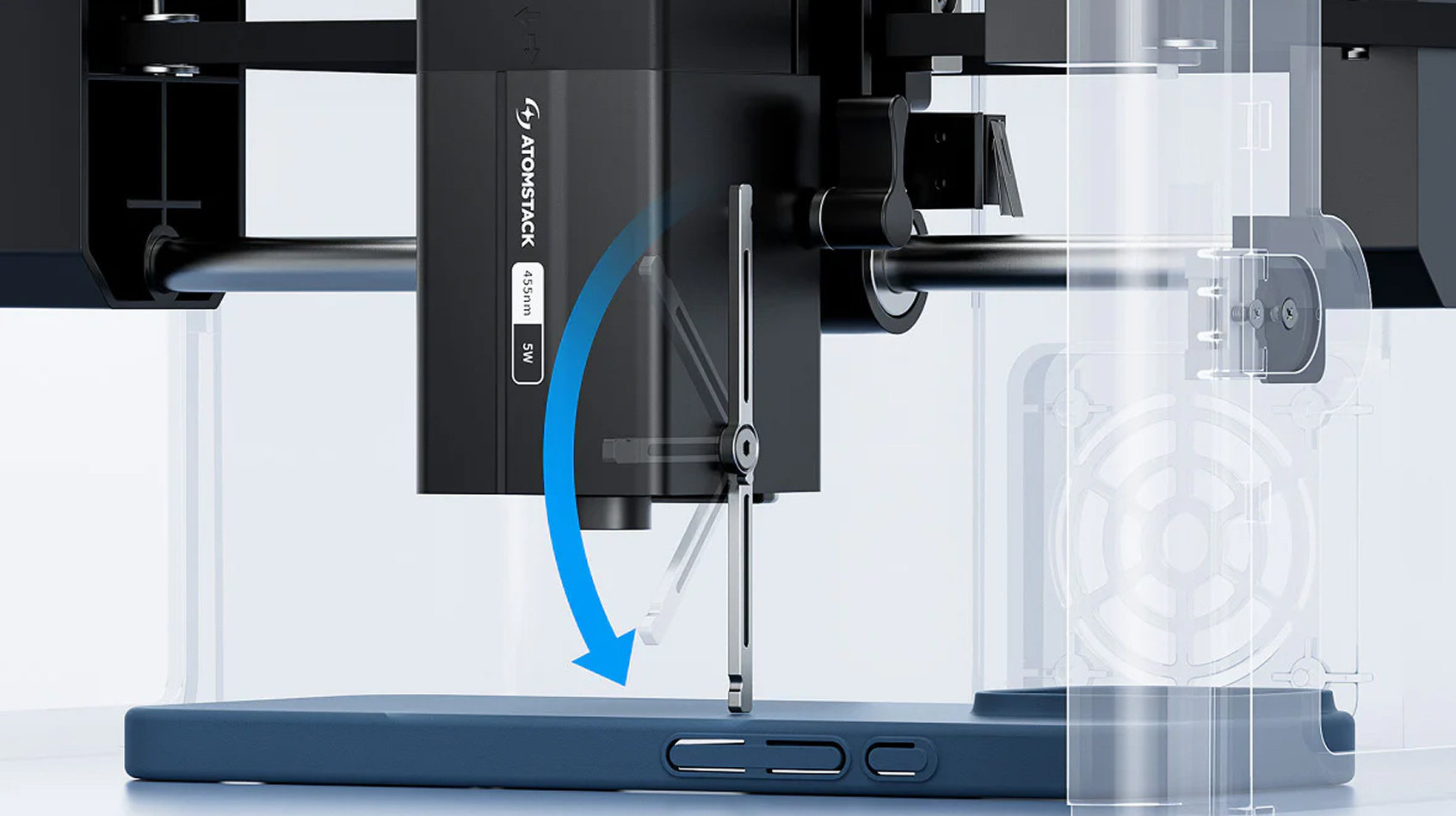
Adjust the height of the laser module until the beam is at its sharpest point on the material surface.
It smells bad while engraving
Yes, it will. The engraver comes with a small vent pipe for this reason. The fumes are not good to breathe, so we recommend venting them somewhere humans won't be. Some common solutions we've seen:
- ✓ Connect the vent pipe to an existing dryer vent
- ✓ Vent above a drop ceiling
- ✓ Purchase the filter attachment from Atomstack's website
- ✓ Place the engraver in a room not regularly used by staff (a closet works great)
For typical clinic usage (a few prints per week), placing the engraver in a well-ventilated or unused room is generally sufficient.
First-time WiFi setup for the engraver
WiFi is configured through the Keepsake web app. Here's how to get started:
- Go to aletheias.ai/keepsake and log in (or create an account)
- Click Add Engraver to begin setup
- Update the firmware first — follow the on-screen instructions to flash the latest firmware to your engraver
- Once the firmware is updated, the setup page will walk you through connecting the engraver to your clinic's WiFi network
You only need to do this once. After setup, the engraver will automatically reconnect to your WiFi and appear in the web app.
The engraver won't turn on, the laser doesn't work, or other hardware issues
We don't supply the engraver — we supply the software only. For any hardware issues (power, laser, mechanical), you'll need to contact Atomstack support directly.
The line art looks bad or isn't working
There's a button to flag a project for review. Click it, and your line art will be reviewed by a human within 24 hours. When it's ready, corrected line art will appear in your project. No need to start over.
Still need help?
We're here for you. Reach out and we'll get back to you as quickly as we can.
Email support@aletheias.ai